RK Phantom iOS App: Install and Login on iPhone
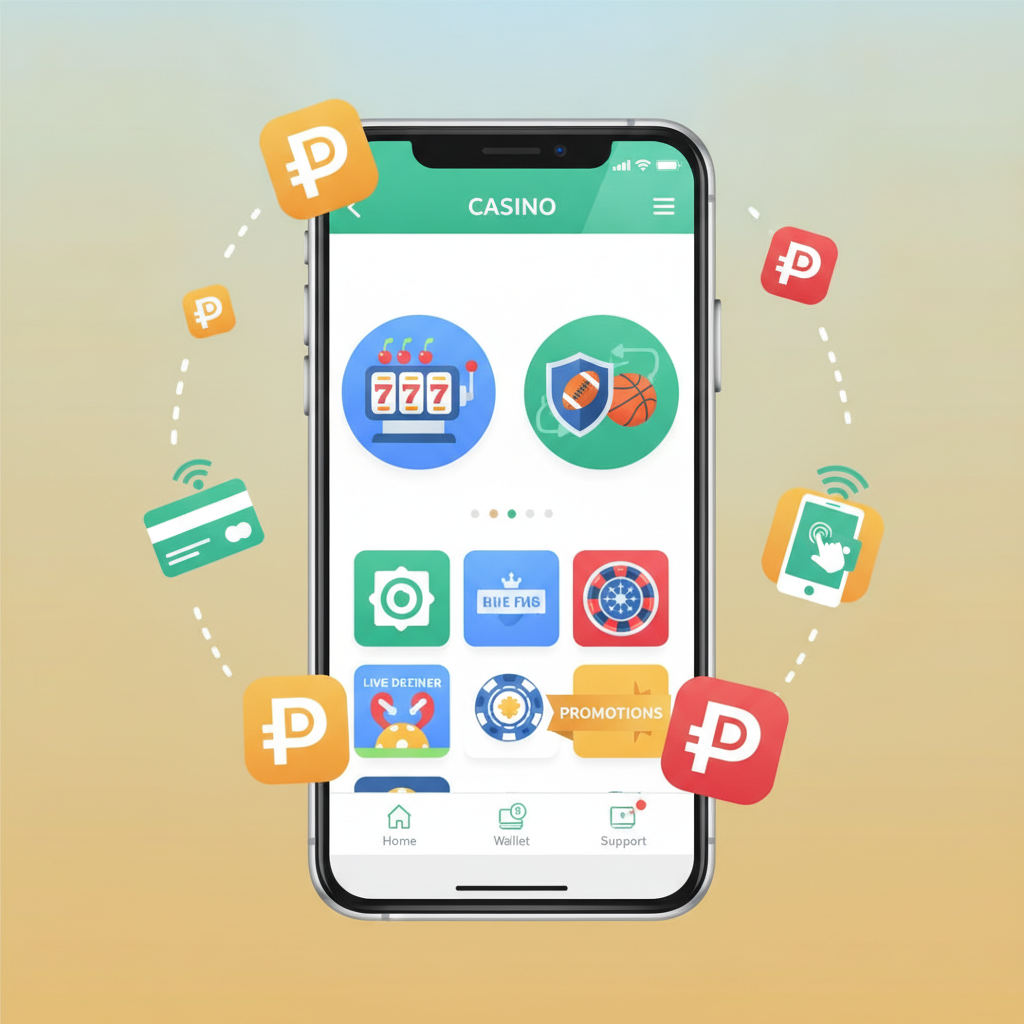
How to Access RK Phantom on iOS
RK Phantom does not currently offer a native iOS app through the Apple App Store. Filipino players using iPhones can still access the full casino, sportsbook, and payment features through two main methods: the mobile web browser or a home screen shortcut that behaves like an app.
Most iPhone users in Metro Manila and the provinces rely on Safari or Chrome to visit the RK Phantom mobile site. The platform is optimized for iOS browsers, with slots, live dealer tables, sports betting on PBA and NBA, and GCash or Maya deposit and withdrawal options all working smoothly without a dedicated app download.
Because Apple enforces strict App Store policies around real-money gambling, many online casinos serving the Philippines do not publish iOS apps publicly. Instead, they may offer TestFlight beta programs or configuration profiles for invited users, or recommend using the mobile web experience paired with a home screen icon.
Installing RK Phantom via TestFlight or Profile
Some operators invite players to test pre-release iOS apps through Apple's TestFlight platform. If RK Phantom sends you a TestFlight invitation link by email or SMS, follow these steps:
- Open the TestFlight invitation link on your iPhone.
- Tap "View in TestFlight" and install the TestFlight app from the App Store if you do not already have it.
- Once TestFlight is installed, return to the invitation and tap "Accept" then "Install."
- The RK Phantom beta app will appear on your home screen with an orange dot indicating it is a test build.
TestFlight apps expire after 90 days, so you will need to update or reinstall when the operator issues a new build. Check your email for update notifications.
Configuration profiles are another method occasionally used for iOS distribution outside the App Store. If RK Phantom provides a profile download link:
- Tap the link in Safari on your iPhone.
- A prompt will ask you to download the configuration profile. Tap "Allow."
- Open the Settings app, tap "Profile Downloaded" near the top of the menu.
- Review the profile details and tap "Install" in the upper right, then enter your device passcode.
- After installation, go to Settings > General > Device Management, find the RK Phantom profile, and tap "Trust."
Always verify that download links come from official RK Phantom channels or customer support. Do not install profiles from unfamiliar sources.
If neither TestFlight nor a profile is available, the home screen shortcut method below is the most reliable option for iPhone users.
Adding a Web-App Shortcut to iPhone Home Screen
A web-app shortcut lets you launch RK Phantom from your iPhone home screen like a native app. It opens directly into your browser without the Safari address bar, giving a full-screen experience. This method works on any iPhone running iOS 13 or later and requires no special invitation.
Step-by-step instructions:
- Open Safari on your iPhone and navigate to the RK Phantom mobile site.
- Log in with your username and password so the shortcut saves your session.
- Tap the Share icon (a square with an upward arrow) at the bottom center of the Safari window.
- Scroll down the share sheet and tap "Add to Home Screen."
- Edit the shortcut name if you prefer something shorter, then tap "Add" in the upper right.
The RK Phantom icon will now appear on your home screen alongside your other apps. Tap it to launch the site in a standalone window. Slots, live dealer games, sports betting, and GCash or Maya payment options all load as they would in Safari.
Benefits of the home screen shortcut:
- No App Store approval required, so updates happen instantly on the server side.
- Works with GCash, Maya, InstaPay, and PESONet deposit and withdrawal flows.
- Saves your login session if you enable "Remember Me" at sign-in.
- Uses less storage than a full native app.
If you clear Safari's cookies or use Private Browsing, you will need to log in again. Keep your password saved in iCloud Keychain or a password manager for quick access.
Login and Notification Issues on iOS Devices
iPhone users occasionally encounter login problems or notification delivery failures when using RK Phantom through mobile web or a home screen shortcut. Below are common issues and fixes.
Login Session Expires Quickly
If you are logged out every time you close the browser or shortcut, check these settings:
- In Safari settings (Settings > Safari), ensure "Block All Cookies" is turned off and "Prevent Cross-Site Tracking" is disabled for the RK Phantom domain.
- Enable "Remember Me" when logging in to extend your session.
- Do not use Private Browsing mode, which deletes cookies when you close the tab.
Two-Factor Authentication or SMS Verification Delays
RK Phantom may send a one-time PIN by SMS when you log in from a new device or after clearing cookies. If the SMS does not arrive within two minutes:
- Check that your mobile number in your account profile matches your active SIM.
- Ensure your iPhone has strong cellular signal or switch from Wi-Fi to mobile data temporarily.
- Request a new code after waiting 60 seconds; repeated rapid requests can trigger anti-spam filters.
Push Notifications Do Not Work
Mobile web shortcuts on iOS cannot send push notifications the way native apps can. If you want alerts for deposit confirmations, withdrawal approvals, or sports betting results, keep the RK Phantom site open in a Safari tab or check your email and SMS for transaction updates.
Some TestFlight or profile-based iOS apps may support notifications if you grant permission during installation. Go to Settings > Notifications > RK Phantom and ensure "Allow Notifications" is enabled, with Banners and Sounds turned on.
App or Shortcut Freezes During Deposit or Withdrawal
If the screen becomes unresponsive while you are completing a GCash or Maya payment, or submitting a withdrawal request:
- Force-close the shortcut by swiping up from the bottom (or double-tapping the home button on older iPhones) and swiping the RK Phantom window away.
- Reopen the shortcut or Safari and log in. Check your transaction history to confirm whether the request was recorded.
- If the deposit or withdrawal does not appear within five minutes, contact RK Phantom support through live chat or Viber before trying again, to avoid duplicate transactions.
Cannot Install Profile or TestFlight Build
If a configuration profile fails to install, confirm that your iPhone is not managed by a corporate or school Mobile Device Management policy, which can block third-party profiles. TestFlight invitations expire after 30 days; request a fresh link from support if yours has lapsed.
iPhone users on older iOS versions (below iOS 13) may experience compatibility issues with modern web features. Updating to the latest iOS version your device supports often resolves login and display problems.
Responsible Gambling and Age Restrictions
RK Phantom is strictly for players aged 21 and over. The platform is designed for entertainment, and all casino games and sports betting carry inherent risk. Set deposit limits through your GCash or Maya account settings, and use the session reminders available in the account menu to monitor your play time.
If you feel your gambling is becoming difficult to control, contact the National Center for Mental Health or seek support from local counseling services. Take breaks, avoid chasing losses, and never deposit more than you can afford to lose.
Final Notes for iPhone Users
While RK Phantom does not offer a public App Store download, iPhone players across Metro Manila and the provinces can access slots, live dealer tables, PBA and NBA sports betting, and GCash or Maya payment features through Safari or a home screen shortcut. These methods deliver the same functionality as an Android APK, with the advantage of automatic updates and no manual installation risk.
If RK Phantom launches a TestFlight beta or profile-based app, watch for official announcements via email or SMS. Until then, the mobile web experience remains fast, secure, and fully featured for deposits, withdrawals, and gameplay on iOS devices.